Notebook 2: Machine Architecture & Data Representation
COMP 1150 — Computer Science Concepts

Download .ipynb · View on GitHub
Learning Outcomes
By the end of this notebook, you will be able to:
- Explain how a transistor becomes a logic gate, and how logic gates combine to do arithmetic
- Describe the von Neumann architecture, including the control unit, ALU, registers, and the fetch–decode–execute cycle
- Explain the memory hierarchy and why caching exists
- Convert numbers between binary, decimal, and hexadecimal by hand
- Represent negative numbers using two’s complement, and decode a two’s-complement byte
- Explain how text, images, and sound are all stored as numbers
- Identify how a representation choice (like a fixed-size integer) can cause real bugs
Maps to course LOs: 1 (machine architecture, data representation, processor–memory interaction) and 2 (data storage, number systems, binary)
A Memory Budget Crisis
Welcome to Eight Bits & Bob, a small game studio shipping its next title onto the PixelBox 8 — an 8-bit console that, per the box, comes “with up to four colours, two of which are brown.”
The game is Quest for the Reasonably Priced Sword. The studio director, Vesper Crunch — who measures everything in bytes, including lunch — has just delivered the bad news: the entire game must fit in a memory budget smaller than a single modern photo. Every character, every sound, every number on screen has to be squeezed into 0s and 1s, efficiently.
That constraint is a gift. It forces us to answer a question most programmers never think about: when everything is just 0s and 1s, how do you store anything? A score? A minus sign? A dragon? A trumpet? And once it’s stored, how does the machine actually compute with it?
This notebook answers both, from the transistor up.
The Roadmap
We’ll build understanding bottom-up — the same direction a computer is physically built:
| Part | Question it answers |
|---|---|
| Transistors → gates → arithmetic | How does a chip do anything? |
| Inside the machine | How are the CPU, memory, and I/O actually wired and used? |
| The memory hierarchy | Why are there so many kinds of memory? |
| Consoles as a fossil record | How has all of this changed over 45 years? |
| Binary & hexadecimal | How do we write numbers with only 0s and 1s? |
| Two’s complement | How do we store negative numbers? |
| Text, images, sound | How is everything else stored as numbers? |
| When representation breaks | Why does this matter for real bugs? |
Several parts end with a hands-on activity — including practice games built into this notebook that you can replay before a quiz.
Notebook 1 closed with a promise: we’d see how a transistor becomes a logic gate, a logic gate becomes an adder, and an adder becomes a computer. Let’s pay it off.
From Transistor to Arithmetic
Dot Mainframe, the studio’s hardware engineer — who named her cat “Cache” — starts at the bottom.
A transistor is a tiny electrical switch with no moving parts. It has two states: current flows (call it 1) or it doesn’t (call it 0). That’s it. That’s the whole physical foundation of computing. A modern chip has billions of these switches; the PixelBox 8 has a few thousand.
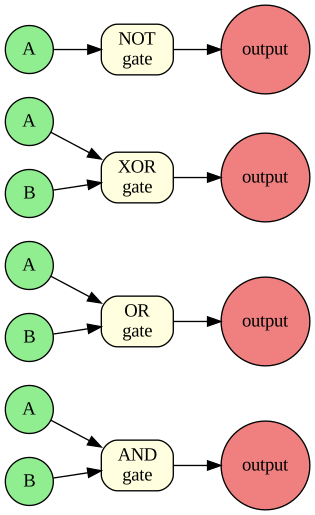
One switch isn’t interesting. The magic starts when you wire a few together so their combined behavior follows a rule. A small bundle of transistors wired to follow one logical rule is called a logic gate.
Reading it: each gate takes inputs A and B (NOT takes just A) and produces one output. What each one outputs is defined by its truth table — next.
How Each Gate Behaves
A gate’s rule is captured in a truth table — every possible input, and the output it produces. There are no surprises and no choices: same inputs, same output, every time.
AND — output 1 only if both inputs are 1:
| A | B | A AND B |
|---|---|---|
| 0 | 0 | 0 |
| 0 | 1 | 0 |
| 1 | 0 | 0 |
| 1 | 1 | 1 |
OR — output 1 if either input is 1. XOR (“exclusive or”) — output 1 if the inputs are different. NOT — one input, flipped. One more shows up in the drill below: NAND — an AND gate with a NOT stuck on the end, so it outputs 1 except when both inputs are 1.
| A | B | A OR B | A XOR B | A | NOT A | |
|---|---|---|---|---|---|---|
| 0 | 0 | 0 | 0 | 0 | 1 | |
| 0 | 1 | 1 | 1 | 1 | 0 | |
| 1 | 0 | 1 | 1 | |||
| 1 | 1 | 1 | 0 |
Memorize these four. Every calculation a computer has ever done is built from them.
From Gates to Addition
Junior Dev Tobble — who has never seen a number bigger than 255 and would like to keep it that way — asks the obvious question: how does a pile of gates actually add 1 + 1?
Look at the XOR and AND results for the inputs 1 and 1:
1 XOR 1 = 0→ that’s the sum digit (1 + 1 in binary is10, so the digit you write down is 0)1 AND 1 = 1→ that’s the carry digit (the 1 you carry into the next column)
So an XOR gate and an AND gate, side by side, add two bits: XOR gives the result digit, AND gives the carry. This pairing is called a half-adder. You don’t need to build one — just hold onto the idea: arithmetic is just gates wired cleverly.
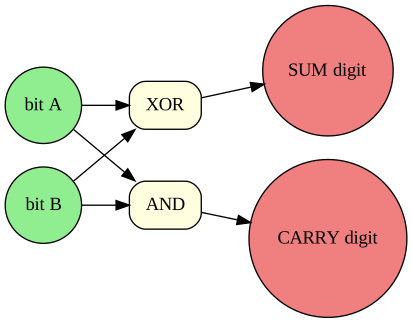
A half-adder handles one column in isolation, which is only enough for the rightmost column — every column above it also has to accept a carry coming in from its right. Add a third input for that and you have a full adder. Chain one half-adder and seven full adders, passing each carry left into the next column, and you can add two 8-bit numbers. That chain is the core of the ALU — the Arithmetic Logic Unit, the part of the chip that does math and comparisons. Add some gates that select which operation to run, and you have, essentially, a processor’s calculator.
That’s the whole bottom of the stack: transistor → gate → half-adder → full adder → ALU. Next we’ll see where the ALU sits inside a complete machine.
Before we go up a level, here’s a practice game for the gates. You don’t need to read its code — that comes in Notebook 4. Just run it and drill until the answers come fast.
🎮 This is a practice tool — not code to study. The hidden cell above defines the game; the cell below runs it. You’re not expected to understand how it’s built yet — functions arrive in Notebook 4. For now, just play: drill the gates until the answers come automatically.
# ▶ TO PLAY: delete the # on the next line, then run this cell.
#    Drill AND, OR, XOR, NOT, and NAND. Replay as often as you like.
# gate_arcade()
💭 Think About It — Why So Few Gates?
Every gate you just drilled — even AND, OR, and XOR — can be built out of nothing but NAND gates wired together. For that reason NAND is called a universal gate.
- In your own words, why might a chip designer prefer to manufacture one kind of gate, over and over, rather than five different kinds? Think about cost, testing, and what could go wrong on a production line.
- A single gate is just a tiny decision: given these inputs, what comes out? Describe something from everyday life that turns two yes/no conditions into one yes/no answer (for example: “the door unlocks only if I have the key AND the alarm is off”). Which gate does your example behave like?
- A computer does breathtakingly complex things, yet at the bottom it is millions of these one-bit decisions. Does that change how you think about what a computer “understands”? Why or why not?
Share a sentence or two on each.
Inside the Machine: How a Computer Actually Works
We have an ALU that can do math. But where do the numbers live, what tells the ALU which math to do, and how do instructions reach the chip at all?
Cmdr. Marlow Stack, the lead engineer — who refers to RAM as “the good china” — explains the layout almost every computer since 1945 has used: the von Neumann architecture. The quick analogy is a kitchen:
- CPU = the cook — does the actual work, very fast, holds only a few things at once
- Memory (RAM) = the counter space — what you’re working on right now; cleared when power is lost
- Storage (the cartridge) = the pantry — big, slow, keeps its contents unplugged
- Input/Output = the serving window — controller in, picture and sound out
The crucial von Neumann idea: the program and its data live in the same memory. An instruction is just a number too. Now let’s open up the cook.
Inside the CPU
A CPU is not one thing — it’s a few cooperating parts:
- Control Unit (CU) — the traffic cop. It reads each instruction and tells every other part what to do and when. It makes no decisions of its own; it just follows the instruction.
- ALU — the calculator from the previous section. It only acts when the Control Unit hands it operands and an operation.
- Registers — a handful of ultra-fast storage slots inside the CPU. The named ones you should know:
- Program Counter (PC) — holds the memory address of the next instruction. “Where am I in the program?”
- Instruction Register (IR) — holds the instruction currently being carried out. “What am I doing right now?”
- Accumulator / general registers — scratch space for the numbers being worked on.
When the CPU needs something from memory, it puts the address on the address bus and the data travels back on the data bus — think of buses as the hallways between the cook and the counter.
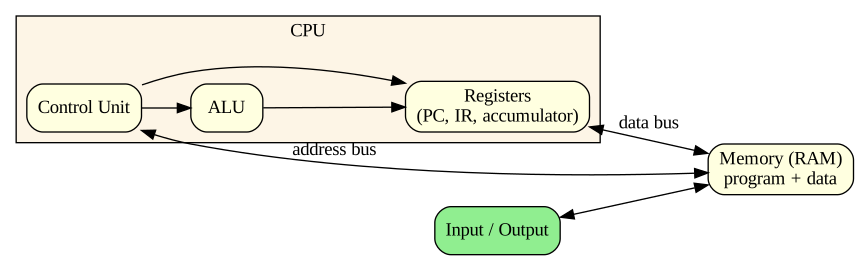
Reading it: the shaded box is the CPU. The Control Unit directs the ALU and registers; the address bus carries where in memory, the data bus carries what. Everything outside the box is reached only through those buses.
Watching One Instruction Run
Suppose memory holds this tiny program. Each line is an instruction stored as a number:
| Address | Instruction | Meaning |
|---|---|---|
| 0 | LOAD 5 |
put 5 into the accumulator |
| 1 | ADD 3 |
add 3 to the accumulator |
| 2 | STORE 9 |
copy the accumulator into memory address 9 |
Here is exactly what the CPU does to run the ADD 3 instruction (the one at address 1), step by step:
| Stage | What happens | Which part |
|---|---|---|
| Fetch | PC says 1 → read memory[1] → ADD 3 lands in the IR |
Control Unit, PC, IR |
| Decode | CU inspects the IR: “this is ADD, operand 3” | Control Unit |
| Execute | CU routes accumulator (5) and 3 into the ALU; ALU outputs 8; 8 goes back to the accumulator | ALU, registers |
| Advance | PC = 1 + 1 = 2, ready for the next instruction | Program Counter |
Every part did exactly one small job. Nothing “understood” addition — the gates from the previous section just produced 8. That is the entire trick of computing.
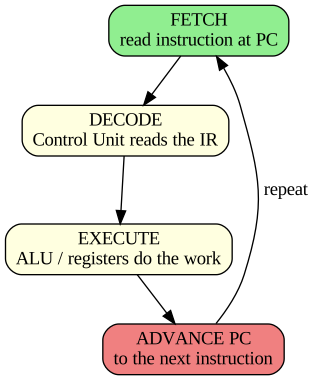
That loop is the fetch–decode–execute cycle, and in pseudocode it is almost insultingly simple:
REPEAT FOREVER:
    1. FETCH   the instruction at the address in the Program Counter
    2. DECODE  it in the Control Unit (what operation? what operands?)
    3. EXECUTE it using the ALU and registers
    4. ADVANCE the Program Counter to the next instruction
Your phone runs this loop several billion times per second. The PixelBox 8 manages a little under two million. The idea is identical; only the speed changed — the same theme that ran through Notebook 1.
The Memory Hierarchy
Why is there RAM and storage and registers and something called cache? Because no single memory technology is fast, big, and cheap at the same time. So computers use layers: a little very-fast memory close to the CPU, backed by progressively larger, slower, cheaper memory further away.
| Level | What it is | Speed | Typical size | Keeps data without power? |
|---|---|---|---|---|
| Registers | Slots inside the CPU | Fastest | A few dozen values | No |
| L1 / L2 cache | Tiny memory beside the cores | Very fast | KB–MB | No |
| RAM | Main working memory | Fast | GB | No |
| SSD | Flash storage | Slow-ish | Hundreds of GB | Yes |
| Hard disk / network | Spinning platters or remote servers | Slowest | TB and up | Yes |
The pattern is strict: the closer to the CPU, the faster and more expensive per byte, and the smaller. This is not a design flaw — it’s the only way to get both speed and capacity at a price anyone can afford.
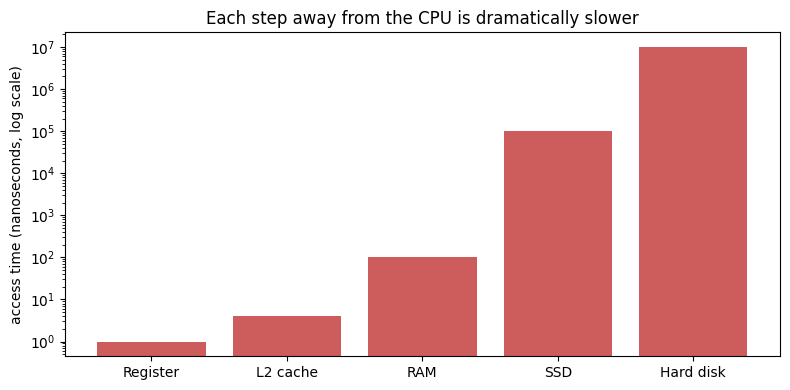
How Big Are These Speed Gaps, Really?
The numbers are too small to feel. So scale them up: imagine one register access takes 1 second. Then, very roughly:
| Memory | Real time | If a register were 1 second… |
|---|---|---|
| Register / L1 cache | ~1 ns | 1 second |
| L2 cache | ~4 ns | ~4 seconds |
| RAM | ~100 ns | ~1.5 minutes |
| SSD | ~0.1 ms | ~1 day |
| Hard disk | ~10 ms | ~4 months |
Reaching all the way to a hard disk, in human terms, is the difference between answering a question now and answering it next spring. That gap is why games have loading screens, and why “is the data already in RAM?” is one of the most important questions in performance.
Why Cache Works
Notice the y-axis is a log scale — each bar is many times taller than the last, so a linear chart would be unreadable. That extreme gap is the whole reason cache exists.
Programs have a helpful habit called locality: if you use a piece of data, you’ll probably use it (or its neighbors) again soon. A loop runs the same instructions repeatedly; a sprite’s pixels sit next to each other. So the CPU keeps recently-used data in fast cache. If the next thing it needs is there, that’s a cache hit (fast). If not, a cache miss — it must trek out to RAM and wait.
“The game is loading” is exactly this: copying data from the slow pantry (disk) up to the fast counter (RAM and cache) before the cook needs it, so play doesn’t stall mid-action.
Consoles as a Fossil Record
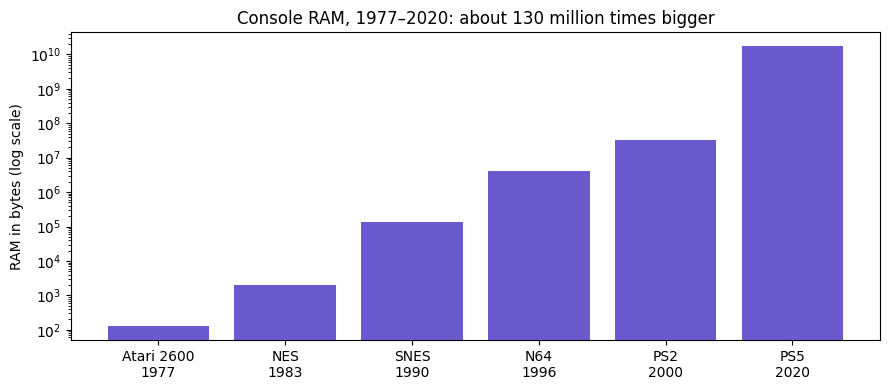
The von Neumann architecture has barely changed since 1945. What changed is the numbers. Game consoles are a perfect fossil record because each generation is a fixed, well-documented snapshot of consumer hardware:
| Console | Year | CPU clock | RAM | Storage |
|---|---|---|---|---|
| Atari 2600 | 1977 | 1.2 MHz | 128 bytes | ROM cartridge (~4 KB) |
| NES | 1983 | 1.8 MHz | 2 KB | cartridge (~256 KB) |
| SNES | 1990 | 3.6 MHz | 128 KB | cartridge (~4 MB) |
| Nintendo 64 | 1996 | 94 MHz | 4 MB | cartridge (~32 MB) |
| PlayStation 2 | 2000 | 294 MHz | 32 MB | DVD (~4.7 GB) |
| PlayStation 5 | 2020 | ~3.5 GHz ×8 cores | 16 GB | SSD (825 GB) |
The Atari 2600 had 128 bytes of RAM — not kilobytes, bytes. You could not store this sentence in it. Programmers squeezed entire games into that space by hand. The PixelBox 8 lives in roughly this era.
💭 Think About It — When the Hardware Outlives the Software
Old consoles and cartridges show how tightly software used to be bound to one specific machine.
- Games written for a 1985 console often can’t run today without emulation. Whose job is it — if anyone’s — to keep old software playable: companies, museums, hobbyists, or no one?
- Binding software tightly to specific hardware made old games fast but fragile. Where else in life do you see a trade-off between squeezing out maximum performance now and keeping flexibility for later?
- Think of a device or file format you once owned that became unusable when the hardware around it changed. What did that cost you?
There are no single right answers here — share a sentence or two on each.
From the Atari 2600 to the PS5, RAM grew roughly 130 million-fold, CPU clock about 3,000-fold, and storage moved through three physical technologies (cartridge → optical disc → SSD). And yet: every one of these machines is a von Neumann computer running a fetch–decode–execute loop over the registers, ALU, and memory we just diagrammed.
The architecture is the constant. The magnitudes are the variable. Hold onto that — it is the single most useful idea for understanding any computer you will ever meet, from a 1977 console to whatever ships in 2040.
Counting in Binary and Hexadecimal
The CPU only has transistors, and a transistor only knows two states. So every number must be written using only two digits: 0 and 1. This is binary (base 2).
You already know base 10. In 375, each position is a power of ten: 3×100 + 7×10 + 5×1. Binary works the same way, but each position is a power of two. A group of 8 bits is a byte, with these place values:
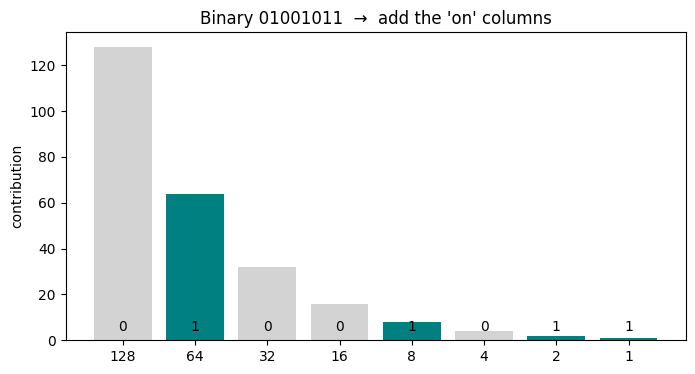
Sum of the 'on' columns: 75Reading it: each bar is a place value (a power of two). A bit of 1 switches its column on; add the lit columns to get the number. The worked example next does exactly this.
Worked Example: 01001011 → decimal
Walk left to right. Wherever the bit is 1, add that column’s place value:
| Bit | 0 | 1 | 0 | 0 | 1 | 0 | 1 | 1 |
|---|---|---|---|---|---|---|---|---|
| Place | 128 | 64 | 32 | 16 | 8 | 4 | 2 | 1 |
| Add? | — | 64 | — | — | 8 | — | 2 | 1 |
64 + 8 + 2 + 1 = 75. Going the other way (decimal → binary): repeatedly subtract the largest place value you can.
An 8-bit byte holds 0 through 255 — that’s 2⁸ = 256 different values. Remember that 255. Tobble certainly does.
75 in binary: 01001011
75 in hex:    4B
int('01001011', 2) = 75
Hexadecimal: Binary for Humans
Pip Renderwick, the studio’s sprite and audio artist — who can draw a dragon in 8×8 pixels and insists it’s clearly a dragon — never writes binary by hand. She uses hexadecimal (base 16).
Long binary strings are error-prone for humans (01001011 — did you miscount?). Hex fixes this because exactly 4 bits = 1 hex digit. Hex needs 16 digit symbols, so after 9 it borrows letters:
| Dec | 0 | 1 | 2 | 3 | 4 | 5 | 6 | 7 | 8 | 9 | 10 | 11 | 12 | 13 | 14 | 15 |
|---|---|---|---|---|---|---|---|---|---|---|---|---|---|---|---|---|
| Hex | 0 | 1 | 2 | 3 | 4 | 5 | 6 | 7 | 8 | 9 | A | B | C | D | E | F |
So 01001011 splits into 0100 (= 4) and 1011 (= B) → 4B. Two readable characters instead of eight bits. This is why colors look like #4B2C9F and memory addresses look like 0x1A3F.
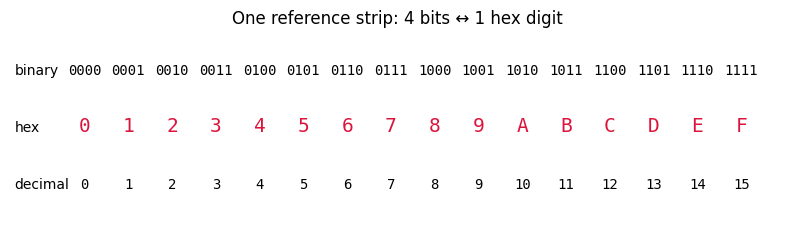
Reading it: read any column top-to-bottom — 4 binary digits, one hex digit, one decimal value. That 4-bits-to-1-hex-digit mapping is the entire trick of hexadecimal.
Hex isn’t a different number system from binary in any deep sense — it’s a compact, human-friendly way to write the same bits. You’ll see it constantly: colors, memory addresses, error codes, file signatures. You’ll drill it in the arcade shortly.
Representing Negative Numbers
Tobble hits a wall. Quest for the Reasonably Priced Sword needs to track when the hero falls in a pit: −50 points. But a byte is just eight 0s and 1s. Where does the minus sign go?
Naive idea — a “sign bit”: use the leftmost bit as a sign (0 = positive, 1 = negative), the other 7 bits as the size. This is sign-magnitude, and it almost works — but it has two ugly problems:
- There are two zeros:
00000000(+0) and10000000(−0). Wasteful, and it breaks comparisons. - The hardware needs special cases — the simple adder from earlier stops working.
Computers use a cleverer scheme with only one zero, where the same adder handles positive and negative numbers: two’s complement.
The Two’s Complement Rule
In an 8-bit two’s-complement system:
- The leftmost bit still signals sign: 0 = non-negative, 1 = negative.
- Positive numbers look exactly like normal binary (
00000101= 5). - To get −x: take the binary for
x, flip every bit, then add 1.
That’s the whole rule: invert, then add one. The range an 8-bit byte can hold shifts to −128 through +127 (still 256 distinct values, still one zero).
Why does it work? Because “invert and add 1” makes x + (−x) overflow cleanly to zero in 8 bits — so the ordinary adder just works, with no special cases. The hardware never even knows the number was “negative.”
Worked Example 1: encode −37 as an 8-bit byte
| Step | Result |
|---|---|
| 1. Write +37 in binary | 00100101 |
| 2. Flip every bit | 11011010 |
| 3. Add 1 | 11011011 |
So −37 = 11011011. The leftmost bit is 1, correctly signaling “negative.”
Check: add 00100101 (+37) and 11011011 (−37) column by column, discard any 9th-bit carry → 00000000. A number plus its negative is zero, exactly as it should be.
Worked Example 2: decode 11011011 back to a signed number
The leftmost bit is 1, so this byte is negative. Reverse the process to find the magnitude:
| Step | Result |
|---|---|
| Given byte (leftmost bit 1 → negative) | 11011011 |
| 1. Flip every bit | 00100100 |
| 2. Add 1 | 00100101 |
| 3. Read that magnitude in decimal | 37 |
| 4. Apply the negative sign | −37 |
Exam tip: leftmost bit 0 → just read it as normal binary. Leftmost bit 1 → flip and add 1 to get the magnitude, then attach a minus sign. That one rule answers every two’s-complement quiz question.
Picture It: the Two’s-Complement Wheel
The diagram below lays all 16 four-bit patterns around a clock face, with the value each one means in the centre. Watch what happens as you pass the halfway point.
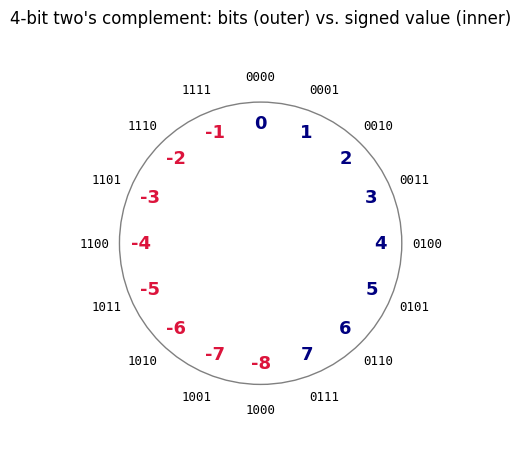
On the wheel, as the bits climb past the halfway point (1000) the meaning jumps to the most negative value and climbs back toward −1 — the numbers wrap like an odometer. Python’s own integers don’t have this limit (they grow as large as needed), but fixed-width values — registers, image pixels, the PixelBox 8’s score counter — absolutely do. We can simulate a fixed 8-bit value with a mask:
-37 stored in 8 bits: 11011011  (raw value 219)
11011011 interpreted as signed: -37
Here are the notebook’s main test-prep tools — two self-grading drills. You don’t need to read their code yet (that’s Notebook 4); just run them and practice until you can hit a streak of 5.
# ▶ TO PLAY: delete the # on the next line, then run this cell.
#    Each round converts between decimal, binary, and hex. Drill to a streak of 5.
# base_arcade()
# ▶ TO PLAY: delete the # on the next line, then run this cell.
# Encode and decode signed bytes — the trickiest skill on the quiz. Drill it.
# twos_arcade()💭 Think About It — Why Hexadecimal Exists
You just drilled converting among decimal, binary, and hexadecimal.
- Humans could read raw binary if we had to, so why do programmers bother with hexadecimal at all? What does grouping bits into hex digits buy you? (Think about how many binary digits a single hex digit stands in for.)
- We almost certainly count in base 10 because of an accident of human anatomy. What “anatomy” makes base 2 the natural choice for a machine built from transistors?
- Imagine a civilization whose computers were built from three-state switches instead of two-state ones. How might their everyday number system differ from ours? There’s no single right answer — reason it out.
Share a sentence or two on each.
Encoding Text, Images, and Sound
Pip Renderwick’s rule for the whole studio: “if it’s in the game, it’s a number somewhere.” Numbers were the easy part — they are numbers. The trick is turning everything else into numbers too.
Text = Numbers in a Lookup Table
A computer stores the letter A by agreeing, in advance, that A is the number 65. That agreement is a character encoding. The classic one is ASCII: A = 65, B = 66, a = 97, space = 32, and so on.
You met this in Notebook 1’s Caesar cipher — ord() gives a character’s code, chr() turns a code back into a character. ASCII only covers 128 characters (enough for English). Modern systems use Unicode, extending the same idea to every writing system on Earth plus emoji — 🐉 is just a (large) number with an agreed meaning.
/usr/local/lib/python3.12/dist-packages/IPython/core/pylabtools.py:151: UserWarning: Glyph 127 () missing from font(s) DejaVu Sans.
  fig.canvas.print_figure(bytes_io, **kw)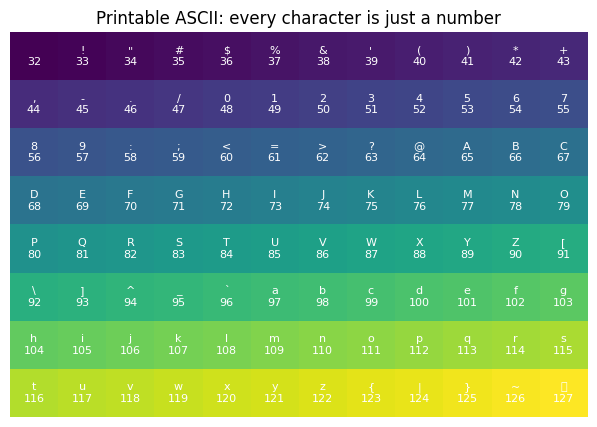
Images = Grids of Numbers
A digital image is a grid of pixels, and each pixel is a number. The simplest case: 1 bit per pixel — 0 is background, 1 is drawn. That’s exactly how a PixelBox 8 sprite works. Color just means more bits per pixel plus a small palette (Vesper only paid for four colors). The image below is rendered straight from a grid of 0s and 1s.
# Pip's 8x8 'definitely a dragon' sprite — just a grid of bits.
dragon = [
    [0, 0, 1, 1, 0, 0, 0, 0],
    [0, 1, 1, 1, 1, 0, 0, 0],
    [1, 1, 0, 1, 1, 1, 0, 0],
    [1, 1, 1, 1, 1, 1, 1, 0],
    [0, 1, 1, 1, 1, 1, 1, 1],
    [0, 0, 1, 1, 1, 1, 1, 0],
    [0, 1, 1, 0, 0, 1, 1, 0],
    [1, 1, 0, 0, 0, 0, 1, 1],
]

plt.figure(figsize=(3, 3))
plt.imshow(dragon, cmap="binary")   # same imshow as the ASCII grid
plt.title("8 bytes = one sprite")
plt.axis("off")
plt.show()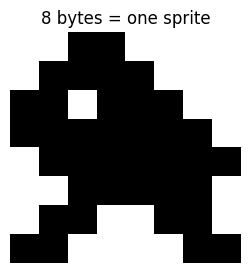
Reading it: that picture is literally the 8×8 grid of 0s and 1s above — imshow painted each 1 dark. No image file: the bytes are the sprite.
Sound = Numbers Over Time
Sound is a wave. To store it, the computer measures the wave’s height many times per second; each measurement is a number — that’s sampling, and the stored sound is literally just that list of numbers. The PixelBox 8’s audio chip is cheap, so instead of smooth waves it mostly produces blocky square waves — the classic “chiptune” buzz.
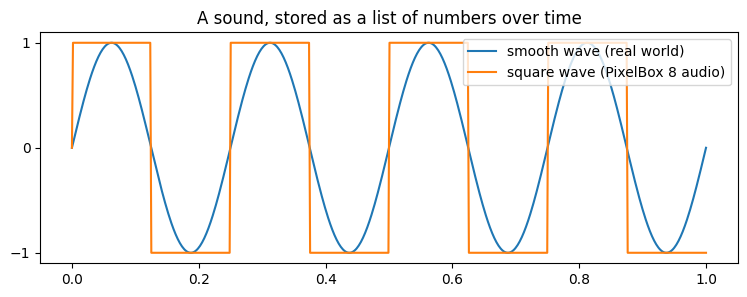
Text, image, sound: three completely different experiences, one underlying idea — a sequence of numbers plus an agreed rule for what those numbers mean. Change the rule and the same bytes become gibberish. That’s the bridge to the final part.
✏️ Exercise 3 — Design Your Own Sprite
The next cell is yours to edit directly. Run it first to see the starter shape, then read the task below it.
# ✏️ EDIT THESE 0s and 1s to draw your own 8x8 sprite.
frame1 = [
    [0, 0, 0, 1, 1, 0, 0, 0],
    [0, 0, 0, 1, 1, 0, 0, 0],
    [0, 0, 0, 1, 1, 0, 0, 0],
    [0, 0, 0, 1, 1, 0, 0, 0],
    [0, 0, 1, 1, 1, 1, 0, 0],
    [0, 1, 1, 1, 1, 1, 1, 0],
    [0, 0, 0, 1, 1, 0, 0, 0],
    [0, 0, 0, 1, 1, 0, 0, 0],
]

# Optional second frame for the animation bonus (start as a copy, then tweak):
frame2 = [
    [0, 0, 0, 0, 0, 0, 0, 0],
    [0, 0, 0, 1, 1, 0, 0, 0],
    [0, 0, 0, 1, 1, 0, 0, 0],
    [0, 0, 0, 1, 1, 0, 0, 0],
    [0, 0, 1, 1, 1, 1, 0, 0],
    [0, 1, 1, 1, 1, 1, 1, 0],
    [0, 0, 0, 1, 1, 0, 0, 0],
    [0, 0, 0, 1, 1, 0, 0, 0],
]

plt.figure(figsize=(3, 3))
plt.imshow(frame1, cmap="binary")
plt.title("Your sprite")
plt.axis("off")
plt.show()
Your task: edit the 0s and 1s in frame1 above to draw something for Quest for the Reasonably Priced Sword — a sword, a coin, a slime, anything. A 1 is a filled pixel, a 0 is empty. Re-run the cell to see your art.
Optional bonus — animation: fill in frame2 with a slightly different pose, then run the cell below to flip between them. Two frames is exactly how 1980s games made things “move” on a tiny memory budget.
Using AI here (optional): ask Gemini “give me an 8×8 grid of 0s and 1s that looks like a sword” — then paste it in and judge whether it actually does. You are the art director; the AI is a junior intern.
# ▶ ANIMATION BONUS: run this after filling in frame2.
import time
from IPython.display import clear_output

for _ in range(6):                       # 6 flips, then stop
    for frame, label in [(frame1, "frame 1"), (frame2, "frame 2")]:
        clear_output(wait=True)
        plt.figure(figsize=(3, 3))
        plt.imshow(frame, cmap="binary")
        plt.title(label)
        plt.axis("off")
        plt.show()
        time.sleep(0.3)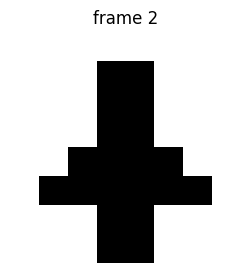
When Representation Breaks
Quoth Bugbear, the studio’s QA tester — who finds the bug, was right all along, and is insufferable about it — files report #256:
“At level 256, the game corrupts. Enemies turn into garbage tiles. Half the screen is hex soup. Unplayable.”
The level counter is stored in one byte. A byte holds 0–255. When the game adds 1 to level 255, the value doesn’t become 256 — there’s no room for a 9th bit, so it wraps around to 0 (or worse, corrupts neighboring memory). This is integer overflow, and it is not a fictional problem.
The Real One: the Pac-Man Kill Screen
The 1980 arcade game Pac-Man stored its level number in a single byte and used it to draw the bonus-fruit display. At level 256 that byte overflowed; the draw routine ran wild and corrupted the right half of the screen into a famous garbled mess — the “kill screen.” The game was literally unbeatable past that point, not by design, but because of one undersized integer.
| Decision | Consequence |
|---|---|
| Store level in 1 byte | Saves memory (precious in 1980) |
| Never expect 256 levels | Reasonable — almost no one got there |
| No overflow check | Level 256 corrupts memory → kill screen |
The same bug class still bites: a 2015 FAA directive warned that a Boeing 787 counter could overflow after 248 days of continuous power, potentially shutting down electrical generators in flight. Representation size is a safety decision.
next level -> stored as 254  (11111110)
next level -> stored as 255  (11111111)
next level -> stored as   0  (00000000)  <-- overflow! wrapped around
next level -> stored as   1  (00000001)
next level -> stored as   2  (00000010)
next level -> stored as   3  (00000011)
Run that cell and watch 254 → 255 → 0. Nothing is “broken” — the hardware did exactly what fixed-width wrap-around always does (the same & 0xFF masking from the two’s-complement section). The bug was a human decision: choosing a box too small for the numbers that would eventually go in it.
Every representation choice in this notebook — byte width, palette size, sample rate, character encoding — is an engineering trade-off with real consequences. That is the deep lesson of data representation, and it’s why this is Learning Outcomes 1 and 2 of the course, not an afterthought.
💭 Think About It — When the Numbers Run Out
The Pac-Man kill screen happens because a counter overflows a single byte. Every number on a computer has a hidden ceiling.
- The bug wasn’t bad luck — it was a limit baked into how the machine stores numbers. Does it change how you think about software to know every program rests on finite, fixed-size representations?
- The Pac-Man overflow was harmless fun. Where might a silent overflow like this be dangerous instead? Reason about a system where running out of digits could really matter.
- Have you ever hit an invisible limit in an app or game — a max level, a character cap, a counter that froze? What do you now think was happening underneath?
There are no single right answers here — share a sentence or two on each.
✏️ Exercise 4 — Build a Retro Text Adventure with AI
In the late 1970s and early ’80s, before graphics were cheap, the hottest games were text adventures: you typed commands like go north or take lamp, and the computer described a world back to you in words. You’ll build a tiny one with an AI partner — but the imagination has to be yours.
Step 1 — Design your world first (do this before touching the AI). A generic prompt gives a generic game. Spend two minutes deciding:
- Setting & era: far-future starship? haunted Victorian manor? noir detective’s city? sword-and-sorcery dungeon? a real place you know? Anything goes — make it yours.
- The goal: what is the player trying to find, escape, or solve?
- Three or four rooms and a one-line description of each.
- One thing that wins the game and one thing that ends it badly.
Jot these down in a markdown cell. This is the part the AI can’t do for you.
Step 2 — Turn your design into a prompt. Fill your ideas into this skeleton and send it to Gemini (or Claude / ChatGPT):
Write a short text-adventure game as a single Python cell that runs in Google Colab. Setting: [your setting and era]. The player is [who they are] trying to [the goal]. Include these rooms: [room 1 — description], [room 2 — description], [room 3 — description]. The player moves by typing
north,south,east,west, orquit. Each room prints its description. Reaching [the win room] wins the game; entering [the hazard] ends it. Use a dictionary of rooms and a simple input loop. Keep it short and beginner-readable.
Step 3 — Get the bones working, then test. Paste the result into the empty cell below and run it right away. It probably won’t be perfect — walk every path, hit the win, hit the loss, and fix what breaks. Don’t add anything new until the basic game runs end to end. Get it working small first.
Step 4 — Now add the whistles and bells. Once the core loop is solid, layer in one or two extras — adding them one at a time and re-testing after each:
- An item to pick up (a key, a keycard, a lantern) that a later room requires before it lets you through.
- A hidden room reachable only by an unusual command.
- A richer ending — a real win and a real lose message.
- Something that wraps — a torch or oxygen meter that drops one unit per move (a callback to overflow!).
For each addition you can ask the AI for help — but run it and read the output yourself before trusting it.
Step 5 — Reflect. In a markdown cell, write 2–3 sentences: what did the AI get wrong, or what did you improve, and how did you fix it?
Remember the course rule: AI is a fast first draft. You verify.
# ✏️ Paste your AI-built retro toy here, then run it and fix what's broken.Key Terms
- Transistor — A microscopic electrical switch with two states (on/off); the physical basis of all digital computing.
- Logic gate — A small group of transistors that follows one logical rule (AND, OR, NOT, XOR).
- Truth table — A table listing every input combination for a gate or circuit and the resulting output.
- Half-adder — An XOR gate plus an AND gate that together add two bits (XOR = sum, AND = carry out). It has no carry in.
- Full adder — An adder for one column that takes three inputs (two bits plus a carry in) and produces a sum bit and a carry out; the building block of every column but the rightmost.
- ALU (Arithmetic Logic Unit) — The CPU part that performs arithmetic and logic, built from chained adders and gates.
- Control Unit — The CPU part that reads each instruction and directs all other parts.
- Register — A tiny, extremely fast storage slot inside the CPU.
- Program Counter (PC) — The register holding the address of the next instruction.
- Instruction Register (IR) — The register holding the instruction currently being executed.
- Bus — The wiring that carries addresses or data between the CPU and memory.
- von Neumann architecture — The standard design where CPU, memory, and I/O are connected and program instructions live in the same memory as data.
- Fetch–decode–execute cycle — The repeating loop a CPU performs to run a program.
- Memory hierarchy — The layered arrangement of registers, cache, RAM, and storage trading speed against size and cost.
- Cache — Small fast memory near the CPU that holds recently used data; a hit is found there, a miss is not.
- Locality — The tendency of programs to reuse recent data and nearby data, which makes caching effective.
- Bit / Byte — A bit is one binary digit; a byte is 8 bits (256 possible values).
- Binary (base 2) — A number system using only 0 and 1; place values are powers of two.
- Hexadecimal (base 16) — Compact notation where 4 bits map to one hex digit (0–9, A–F).
- Two’s complement — The standard scheme for storing signed integers: negate by flipping all bits and adding 1.
- Integer overflow — When a value exceeds the maximum its fixed-size storage can hold and wraps around.
- Character encoding (ASCII / Unicode) — An agreed mapping from characters to numbers.
- Pixel — One dot of an image, stored as a number; more bits per pixel means more possible colors.
- Sampling — Measuring a sound wave’s height many times per second to store it as a list of numbers.
- Palette — A small fixed set of colors an image is allowed to use, to save memory.
Summary
- Transistors → gates → half-adders → full adders → ALU. Computation is switches wired to follow logical rules.
- Inside the CPU, a Control Unit directs an ALU and registers (PC, IR, accumulator) through the fetch–decode–execute loop, talking to memory over buses.
- The memory hierarchy (registers → cache → RAM → SSD → disk) exists because no memory is fast, big, and cheap at once; caching works because programs have locality.
- Consoles from 1977 to 2020 show RAM growing ~130 million-fold while the architecture stayed the same — magnitudes change, ideas don’t.
- Binary is counting in powers of two; hexadecimal is the same bits, written for humans.
- Two’s complement stores negatives so the ordinary adder still works — flip the bits, add one.
- Text, images, and sound are all numbers plus an agreed rule for reading them.
- Representation size is an engineering and safety decision — the Pac-Man kill screen was one byte, chosen too small.
Everything is numbers. The size of the box you put them in matters.
What’s Next
You now know what the machine is, how it computes, and how it stores things. Notebook 3 turns to instructing it: we’ll go from a plain-English description of a problem, to pseudocode, to a flowchart, to working Python — the authoring workflow this whole course runs on. Eight Bits & Bob still has a game to finish, and the code isn’t going to write itself. (Bob keeps insisting it will. Nobody listens to Bob.)
COMP 1150 — Computer Science Concepts · Brendan Shea, PhD
Content licensed under CC BY 4.0.